
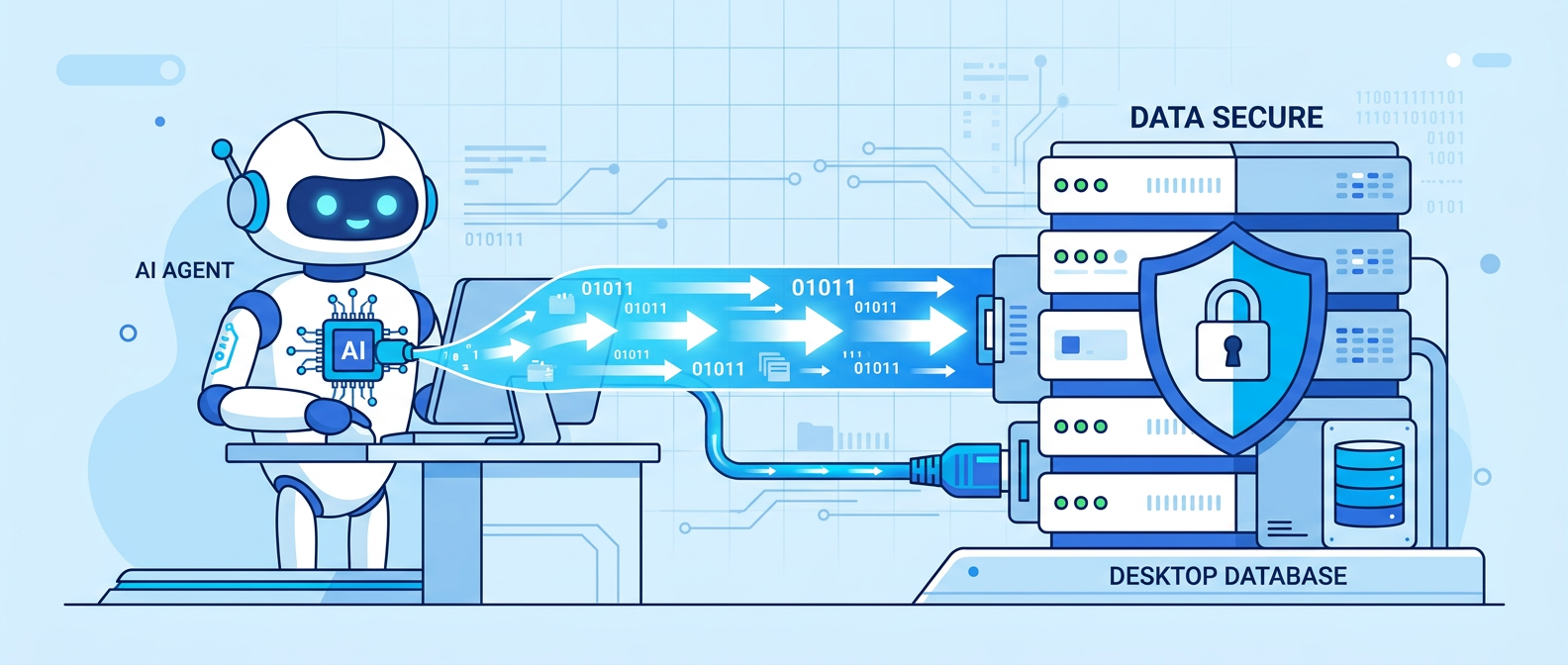
If you’ve been exploring AI Agents, you’ve probably run into a frustrating problem: how do you get your AI tools to write data directly to a database on your desktop or local network — without creating security vulnerabilities?
The good news is that the solution actually exists. FormRouter MCP bridges the gap between modern AI Agents and your local databases using MCP (Model Context Protocol) Server technology. No security holes. No manual data entry. No headaches.
What Is FormRouter MCP?
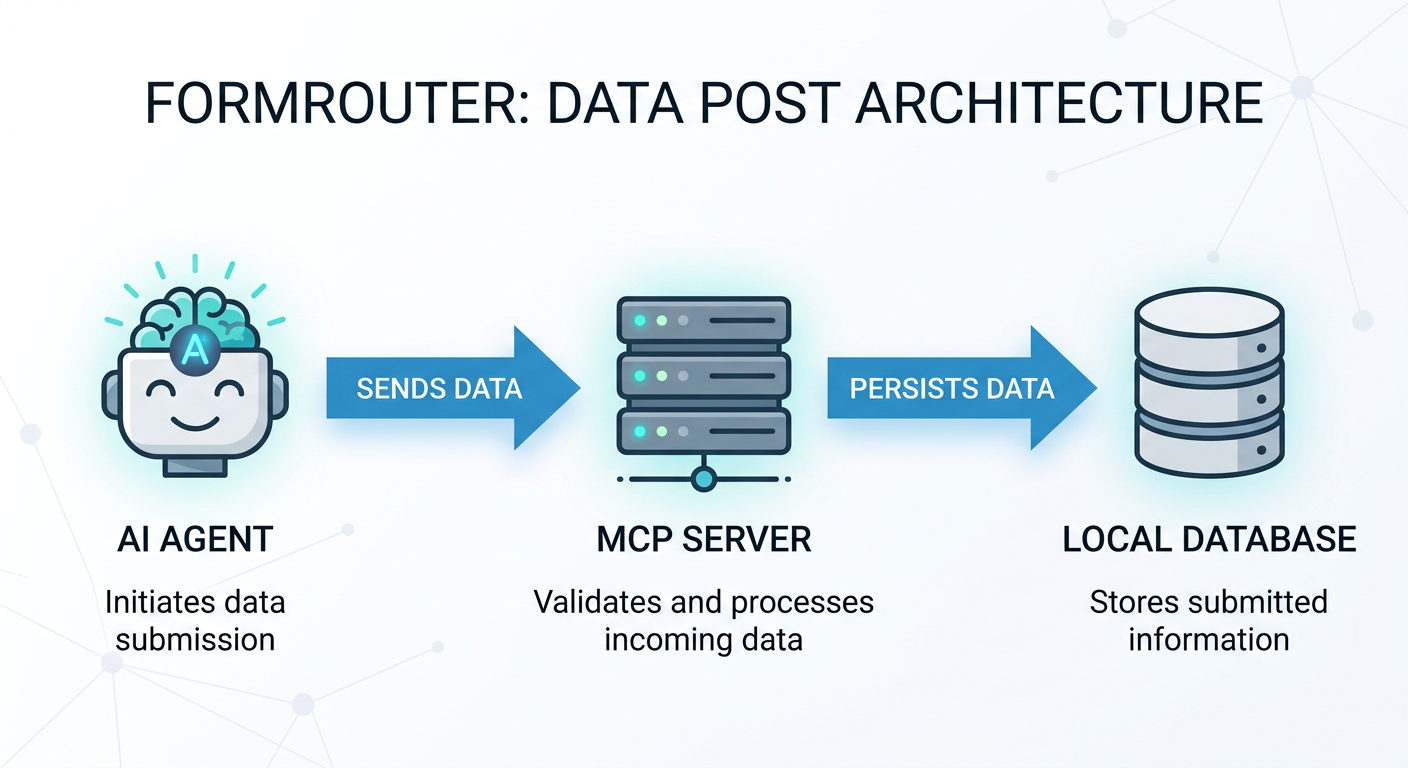
FormRouter MCP is a data routing tool that acts as a secure intermediary between your AI Agents and your local databases. It exposes an MCP Server endpoint that any AI Agent or LLM tool can connect to, then uses a lightweight client running on your local machine to write that data wherever you need it.
Supported data destinations include:
- Microsoft Access
- Microsoft Excel
- SQL Server
- SharePoint
- ODBC connections
- CSV and XML text files
Why Use FormRouter MCP Instead of a Direct Connection?
Opening a direct connection from an external AI tool to your local database is a serious security risk. It typically requires exposing ports, modifying firewall rules, or storing sensitive credentials in third-party systems.
FormRouter MCP flips this model. Your local FormRouter Client reaches out to retrieve data — meaning nothing from the outside ever reaches in to your network. You get the automation benefits of AI without compromising your infrastructure.
Step-by-Step: Connecting Your AI Agent to a Local Database
Step 1: Confirm Your AI Agent Supports MCP Servers
Before anything else, verify that your AI Agent or LLM tool can connect to MCP servers. The short answer: if you’re using a modern AI Agent or tool, it almost certainly can. MCP support has become a standard capability across the ecosystem.
Step 2: Create a FormRouter MCP Account
Head over to FormRouter and sign up for an MCP account. Once registered, you’ll receive your connection credentials — keep these handy, as you’ll need them in the next step.
Step 3: Connect Your AI Agent to the FormRouter MCP Server
Using the credentials from Step 2, configure your AI Agent or LLM tool to connect to the FormRouter MCP Server. This is usually done in your tool’s settings or configuration panel. The exact steps will vary slightly depending on which AI platform you’re using, but the process is straightforward.
Step 4: Ask Your AI to Post Data
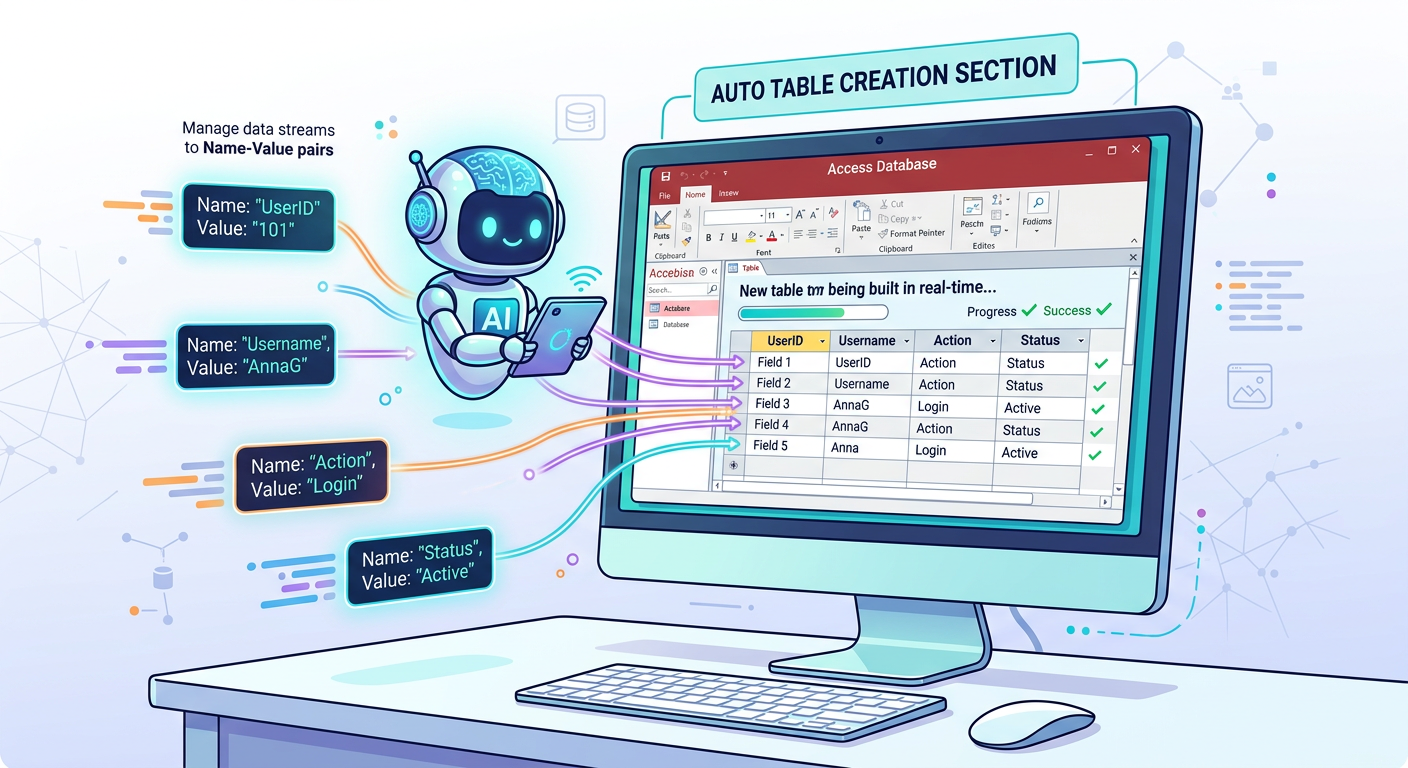
Once connected, you can simply instruct your AI Agent to post data to a specific table in your database. For example:
“Collect competitor data from the Web into the Competitor table in my database.”
Your AI Agent will handle the rest, passing the data through the FormRouter MCP Server to your local client.
Step 5: Let FormRouter Handle the Rest
The FormRouter Client, running on your local PC or network, receives the incoming data and writes it to the table you specified. You don’t need to do anything manually.
The Bottom Line
AI Agents are powerful — but only if you can actually use the data they collect. FormRouter gives you a secure, flexible, and fully automated pipeline from your AI tools to your local database, using technology that has been battle-tested.
Whether you’re logging leads, capturing form responses, storing research results, or building any other AI-driven workflow, FormRouter ensures your data lands exactly where it needs to go.
Ready to get started? Sign up for a FormRouter MCP account and connect your first AI Agent today.
Recent Comments